Guides
How to organize snack screenshots into a shortlist you can use
Turn a camera roll of snack screenshots into exact product names, a small want-to-try list and separate tasting notes. Includes a copyable triage table.
By finds editorial · 4 min read ·
CPG • practical guide
checked september 30, 2026
Turn snack screenshots into a small list of exact products, then separate “want to try” from “tried.” Keep a screenshot when it contains useful source information. Use a saved product in finds for the snack you want to revisit, and a tasting record after you eat it. You do not have to process the whole camera roll to make your next trip easier.
Start with the next shop, not the entire archive
Choose five screenshots that still interest you. For each one, read the package and caption. Record the brand, product name and flavor. Two photos of the same brand may show different flavors, sizes or preparations.
If the package is unreadable, keep the screenshot in a “needs identification” group. Do not guess a product because its colors look familiar. A video frame might show a recipe ingredient, a serving suggestion or an older package rather than the item you thought it showed.
Use this three-way triage
| Screenshot state | Keep | Next action |
|---|---|---|
| Exact product identified, still interested | Product name and useful source | Add to your want-to-try shortlist |
| Already tasted | Your reaction and any helpful context | Make a tasting record |
| Duplicate, no longer interested or unreadable | Only what you still need | Archive, remove or investigate later |
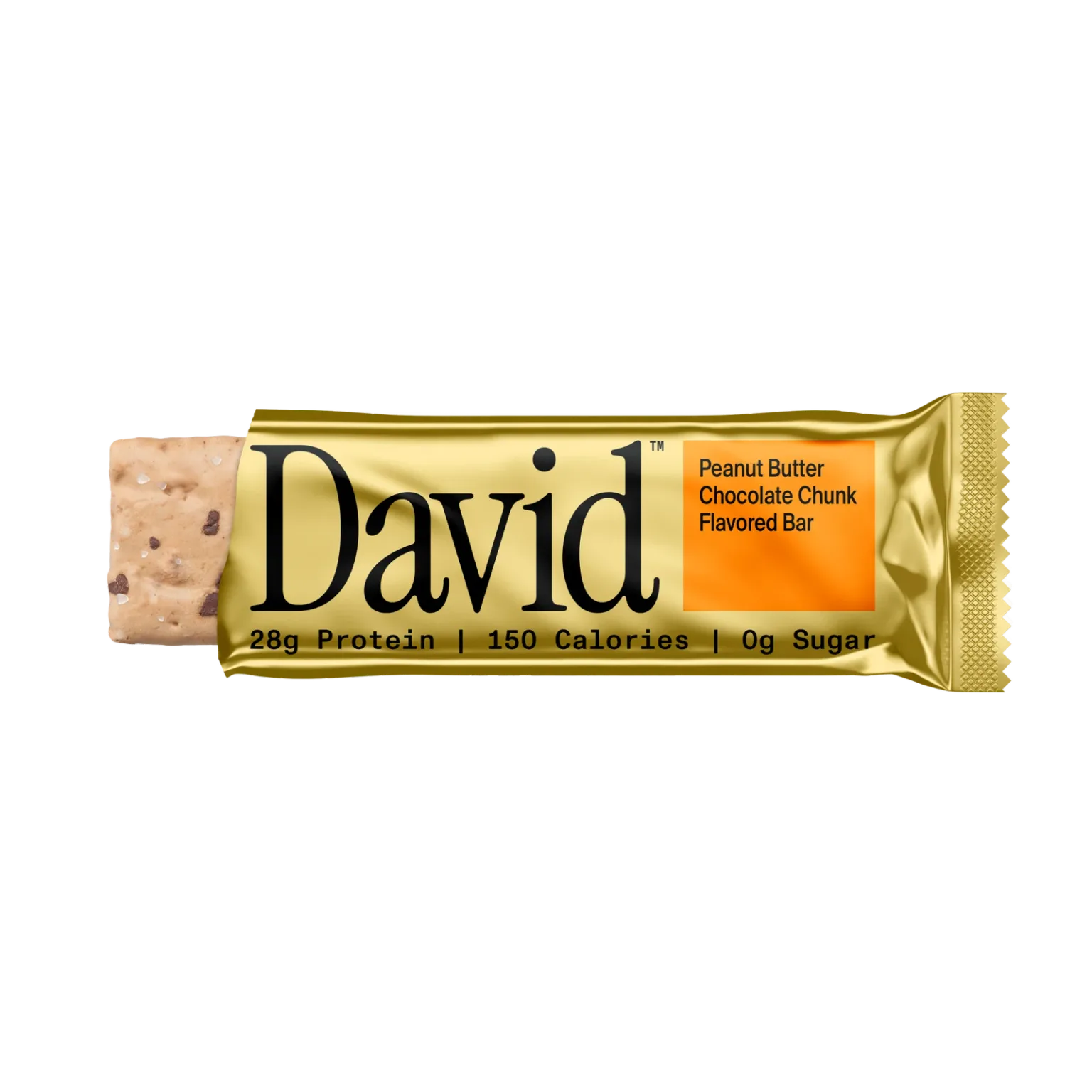
Example: “David peanut butter bar” is too broad. Peanut Butter Chocolate and Peanut Butter Chocolate Chunk are separately named products on David's site. Naming the flavor is the useful work; a folder full of anonymous package photos does not do it for you.
Move an identified snack into finds
- Open finds and search the exact brand and product name.
- Check that the flavor matches the screenshot.
- Save the product if you have not tried it.
- Return to Saved before your next grocery trip.
- After tasting, record your reaction and complete the ranking comparisons.
The saved list is a product shortlist. It does not confirm that a nearby store has the item. If the exact product cannot be found, keep the original screenshot and name rather than saving a substitute as an exact match.
Keep the source when it matters
A CPG product record and a screenshot can each keep something useful. The record helps you return to an exact snack. The screenshot may contain a creator's explanation, a serving idea or a friend's message. Keep the source link or image when you need that context or want to credit it later.
This guide describes manual identification and saving. It does not promise screenshot import, image recognition or automatic camera-roll cleanup. Deleting photos is your separate decision; first check whether the source is still useful and how your photo backups work.
A copyable note for unresolved screenshots
Brand and exact flavor: Original source or sender: Why it interested me: Tried yet: yes / no What I still need to identify:
Resolve one entry, then use it on an actual trip. A five-item shortlist you can read is more useful than an unfinished attempt to label several years of photos.
For a screenshot from a video, see saving snack ideas from TikTok. For visual boards, compare Pinterest and finds. For a message from a friend, use the group-chat recommendation routine.
See the CPG product workflow
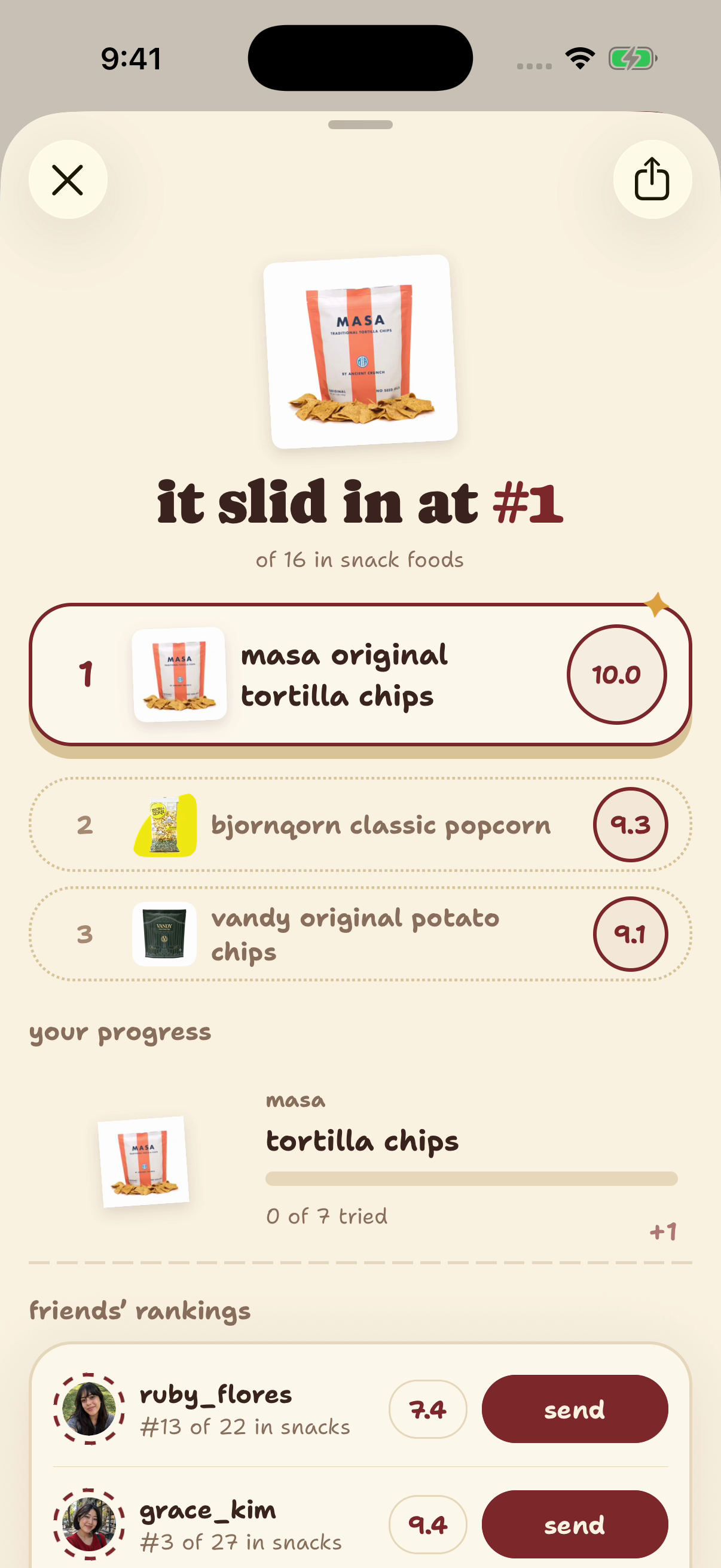
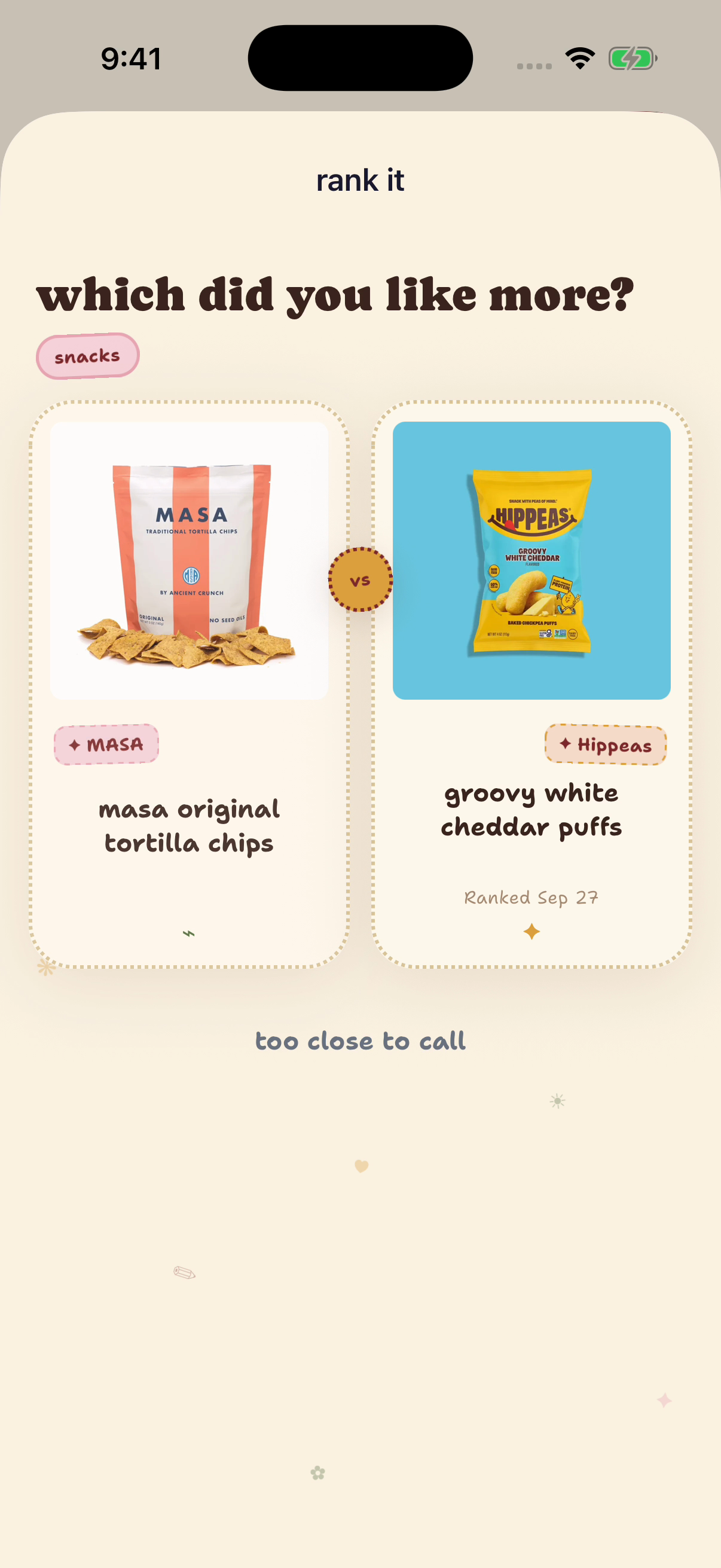
Native finds example account, captured September 29, 2026. Products and controls demonstrate the workflow; the ranks, notes and displayed tasting dates are seeded examples, not shopper evidence.
Sources and method
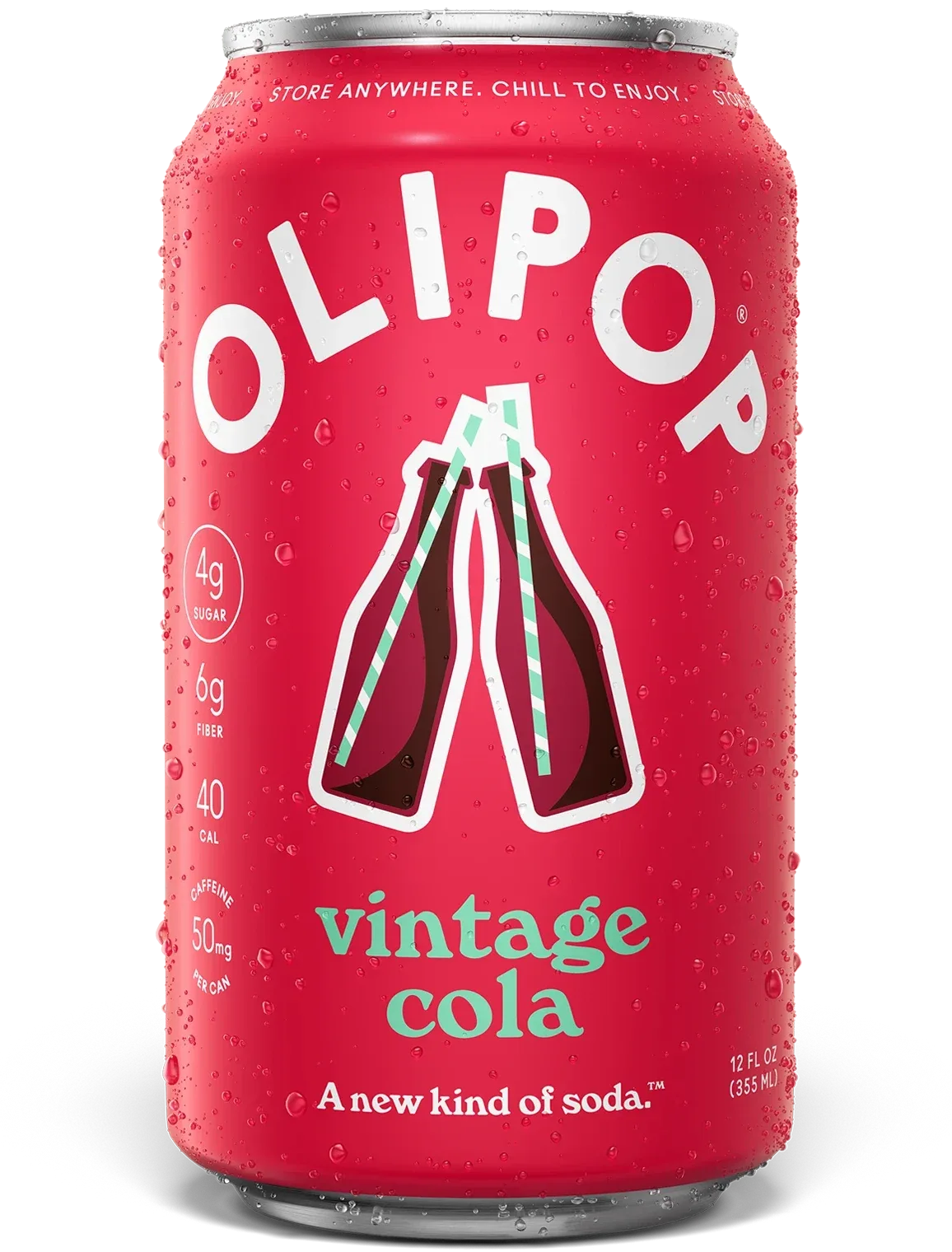
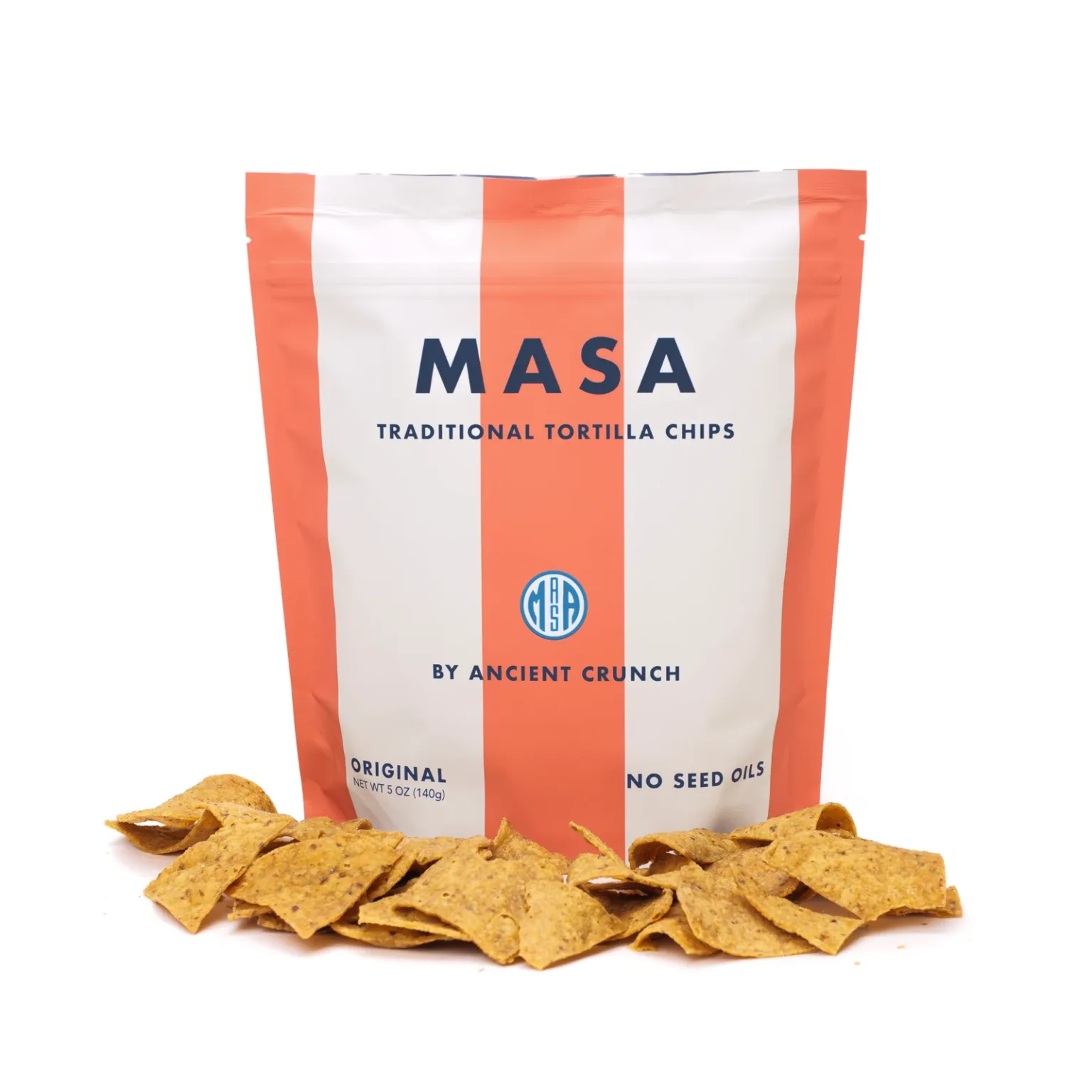
finds publishes this guide. Templates are editorial suggestions, not quotations or a new taste test. Exact OLIPOP, David and MASA product records and published catalog images were checked September 30, 2026. Native finds example account, captured September 29, 2026. Products and controls demonstrate the workflow; the ranks, notes and displayed tasting dates are seeded examples, not shopper evidence.
The illustrations show supported app behavior. No comparative performance, local inventory or acquisition lift is claimed. For the next discovery step, see finding new specialty CPG snacks and drinks.
Sources
- finds App Store listing and owned product guides, checked September 30, 2026
- Native finds CPG ranking capture, September 29, 2026, seeded example account
- OLIPOP official Vintage Cola product page, checked September 30, 2026
- David official Peanut Butter Chocolate Chunk product page, checked September 30, 2026
- MASA official Original Tortilla Chips product page, checked September 30, 2026
- Exact published specialty product records and images, finds production catalog, checked read-only September 30, 2026