Guides
Spreadsheet vs. finds: how to keep a snack tasting log
Build a copyable snack tasting table, or use finds for product records and comparison-based rankings. Choose by the kind of history you want to keep.
By finds editorial · 4 min read ·
CPG • app comparison
checked september 30, 2026
Use a spreadsheet when you want to choose your own columns and maintain a tasting table. Use finds when you want a packaged snack or drink record and a preference order built through comparisons. A spreadsheet can be a good first notebook; an app becomes useful when maintaining exact product entries and a ranking is the recurring job.
This is a workflow comparison, checked September 30, 2026, rather than a benchmark of which tool is faster. There is no demonstrated spreadsheet import in this guide.
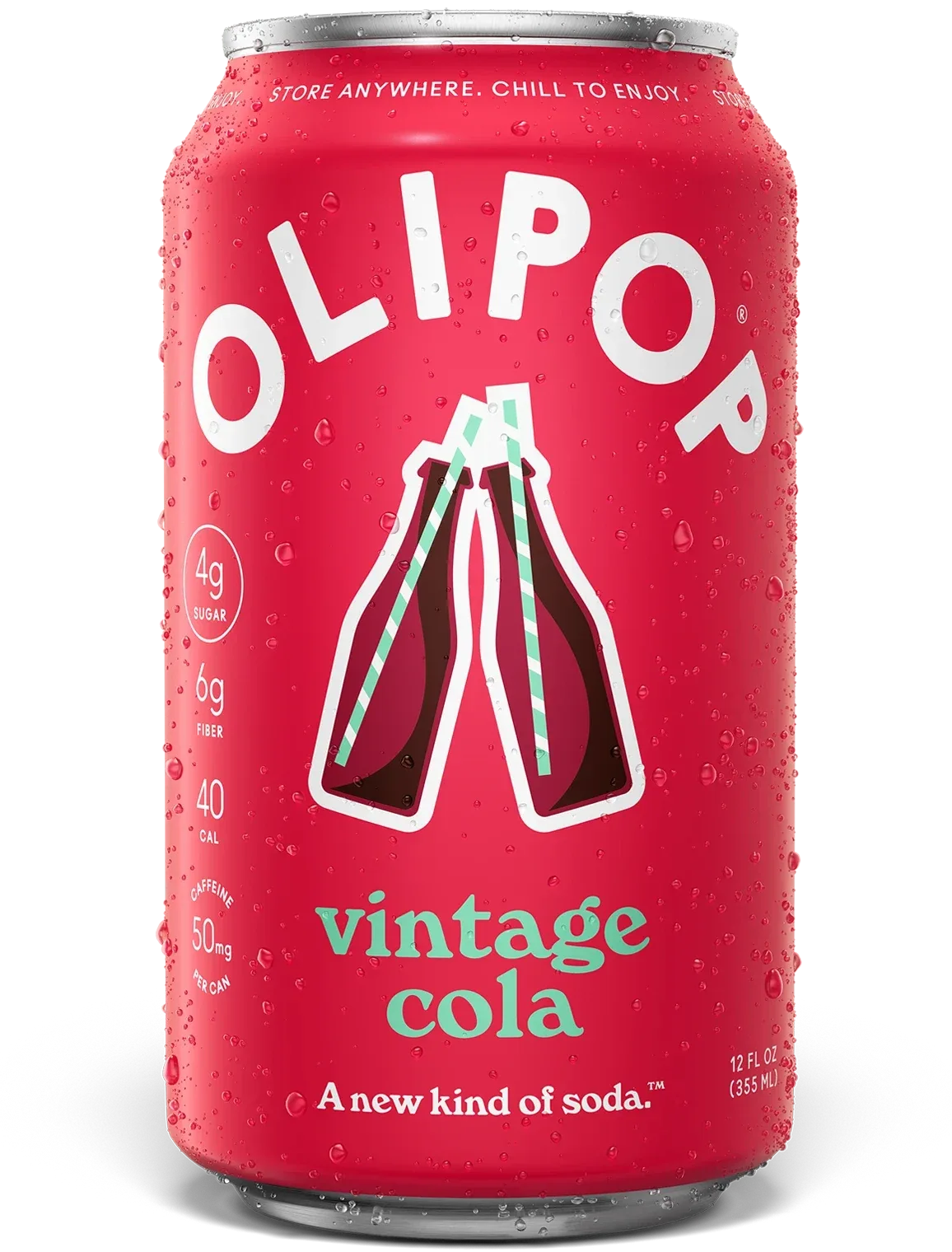
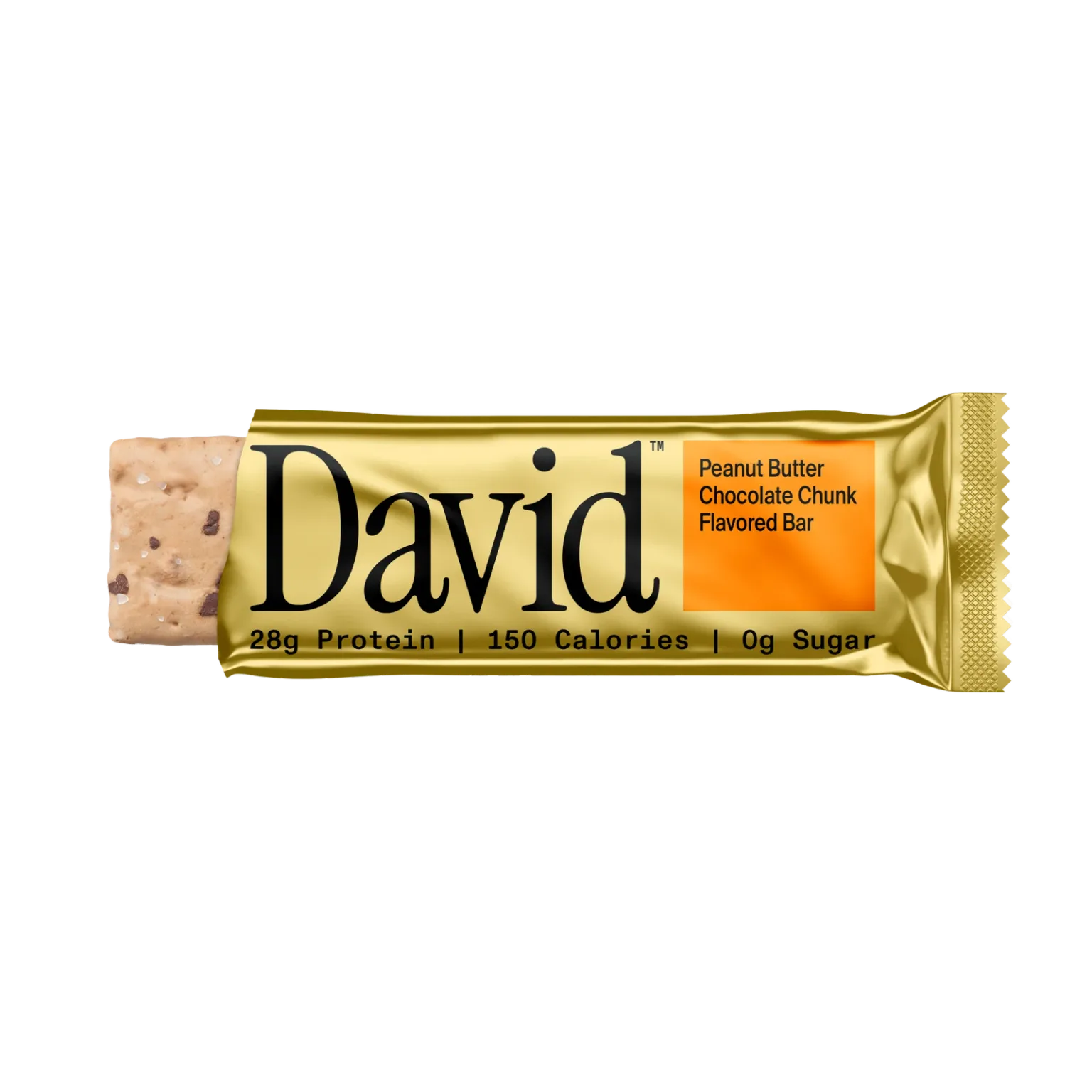
For specialty CPG, use exact names such as OLIPOP Vintage Cola or David Peanut Butter Chocolate Chunk. A brand name alone loses the flavor distinction.
A copyable tasting-log template
Start with these columns. Leave untasted items marked “want to try,” and leave their reaction blank.
| Product and flavor | State | Date tried | Reaction | Detail to remember | Buy again for |
|---|---|---|---|---|---|
| Exact name from the package | Want to try / tried | Your actual date | Your own words | Texture, preparation or serving context | The occasion |
Here is a deliberately fictional entry to show the format, not a product review:
| Product and flavor | State | Date tried | Reaction | Detail to remember | Buy again for |
|---|---|---|---|---|---|
| Example brand, lemon wafer | Tried | Date you tasted it | Liked it | Good with tea; too sweet alone | Afternoon tea |
Copy the headers into your preferred spreadsheet. Add price, store or package size only if those details change your decisions. A remembered price needs a store and date; it is not a current shelf price.
Make the table useful before adding more columns
A table that records everything can still fail to answer “what should I buy again?” Review the tried rows for the occasion you have in mind. Keep the original note when you make a shortlist so “liked it” does not lose its context.
Google Sheets supports filtering a range by conditions. If column B holds the state in the template above, this optional formula returns tried rows from rows 2 through 100:
=FILTER(A2:F100,B2:B100="Tried")
Put the formula in a separate sheet or empty area. It returns matching records, not a taste ranking. If there are no matching rows, Google documents that FILTER returns an error. You can also review a small table manually.
Where finds changes the job
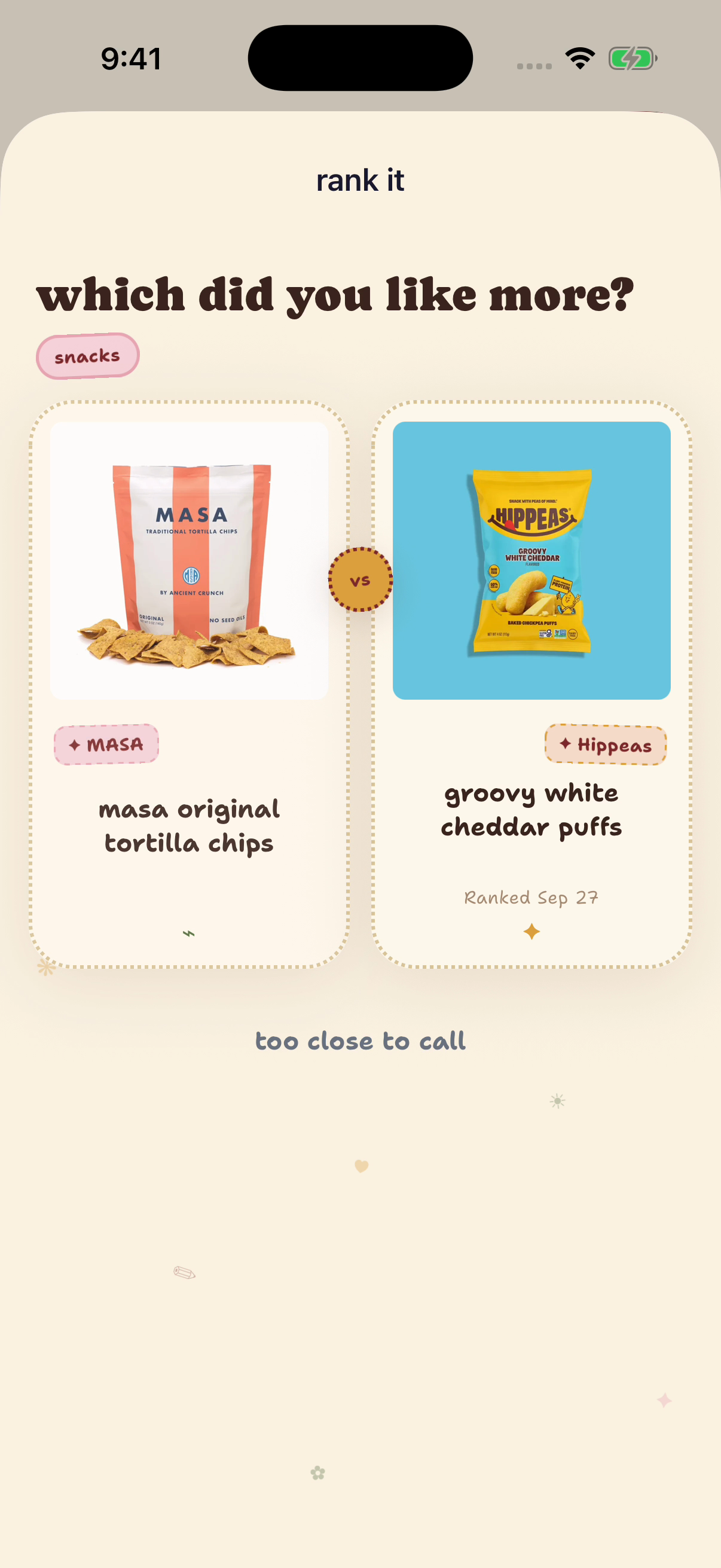
In finds, search for the exact product, record your reaction and complete the comparisons against products you know. The question is which product you liked more. That creates a personal order rather than requiring you to maintain a ranking column yourself.
| Decision | Spreadsheet | finds |
|---|---|---|
| Custom tasting fields | Choose and maintain your columns | Use the product and tasting workflow |
| Exact product identity | Enter the brand and flavor yourself | Find the matching product record |
| Preference order | Maintain an order yourself | Complete product comparisons |
| Untried recommendations | Keep a separate state or sheet | Save before tasting |
The ranking walkthrough shows the actual comparison and result screens. A rank is a position in your own record, not a claim that every shopper agrees.
Try three entries instead of moving your whole history
Choose three products that you remember well. Record them in finds and keep your existing table. After your next trip, ask whether the ranking helped you select a familiar favorite and whether you could recover the note that explained your choice.
Continue with the method that helps. Old notes with uncertain memories can stay notes. Do not invent a tasting date or force a precise preference just to complete a migration.
For ratings that all end up alike, see why every snack gets four or five stars. For the core habit, see remembering products you liked.
See the CPG product workflow
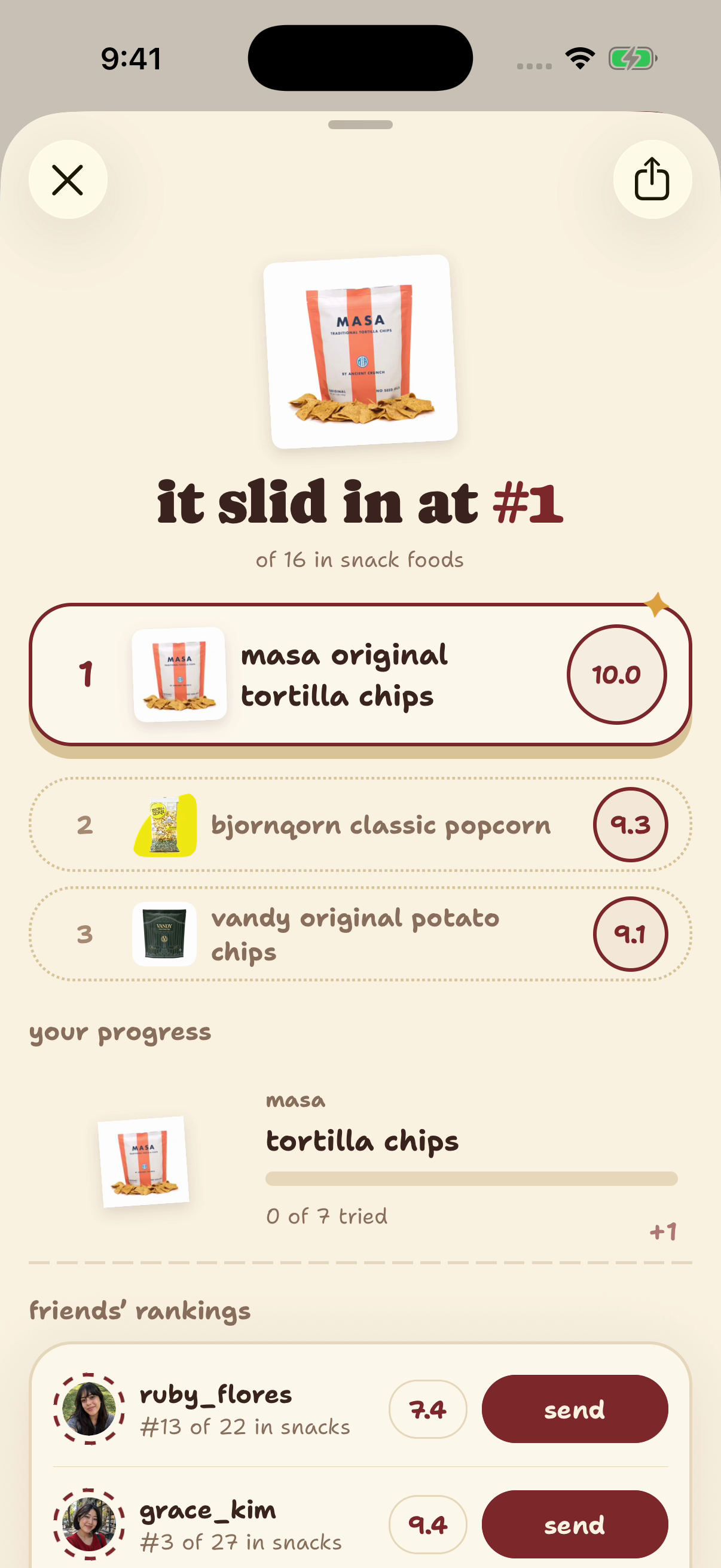
Native finds example account, captured September 29, 2026. Products and controls demonstrate the workflow; the ranks, notes and displayed tasting dates are seeded examples, not shopper evidence.
Sources and method
finds publishes this guide. Templates are editorial suggestions, not quotations or a new taste test. Exact OLIPOP, David and MASA product records and published catalog images were checked September 30, 2026. Native finds example account, captured September 29, 2026. Products and controls demonstrate the workflow; the ranks, notes and displayed tasting dates are seeded examples, not shopper evidence.
The illustrations show supported app behavior. No comparative performance, local inventory or acquisition lift is claimed. For the next discovery step, see finding new specialty CPG snacks and drinks.
Sources
- finds App Store listing and owned product guides, checked September 30, 2026
- Google Sheets Help: FILTER function, checked September 30, 2026
- Native finds CPG ranking capture, September 29, 2026, seeded example account
- OLIPOP official Vintage Cola product page, checked September 30, 2026
- David official Peanut Butter Chocolate Chunk product page, checked September 30, 2026
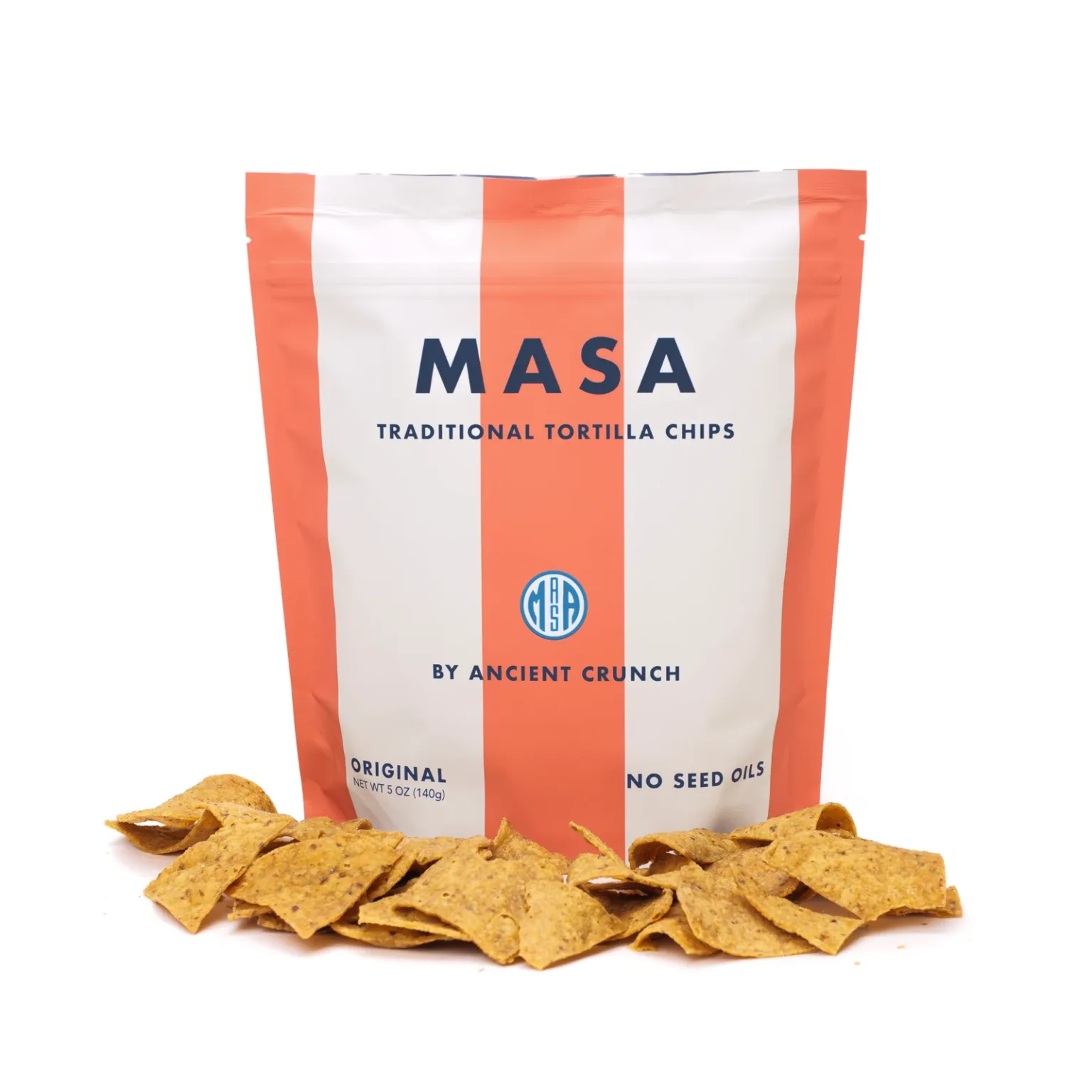
- MASA official Original Tortilla Chips product page, checked September 30, 2026
- Exact published specialty product records and images, finds production catalog, checked read-only September 30, 2026